

Up Your
Career
Game

Get quick & easy access
With your library card
You’re more creative than you think
24/7 access to online classes featuring art, sewing, jewelry, crafting and more! Sign up today!
learn new skills!
Online courses on coding, design, photography, business, and more! Get started today!
Premium News for Free!
The Seattle Times, The Wenatchee World, and more – Get quick & easy access today with your library card.

test help & career guidance
Discover your passion, ace your exams, and excel in your career.

Upcoming Events
Latest from the Blog
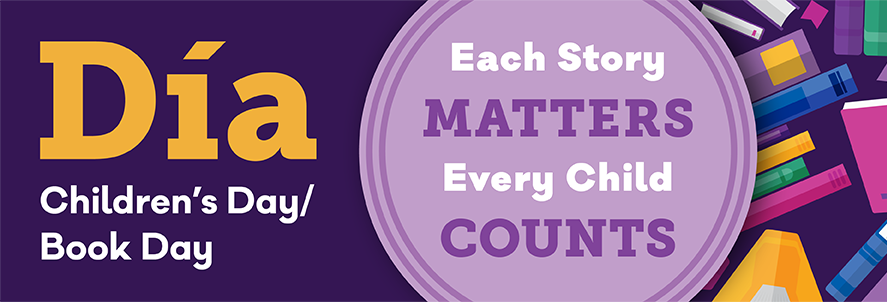
Celebrate Día With Books
El día de los niños/El día de los libros (Children's Day/Book Day), commonly known as Día, is a celebration of children, families, and reading that culminates yearly on April 30. Día is a nationally...
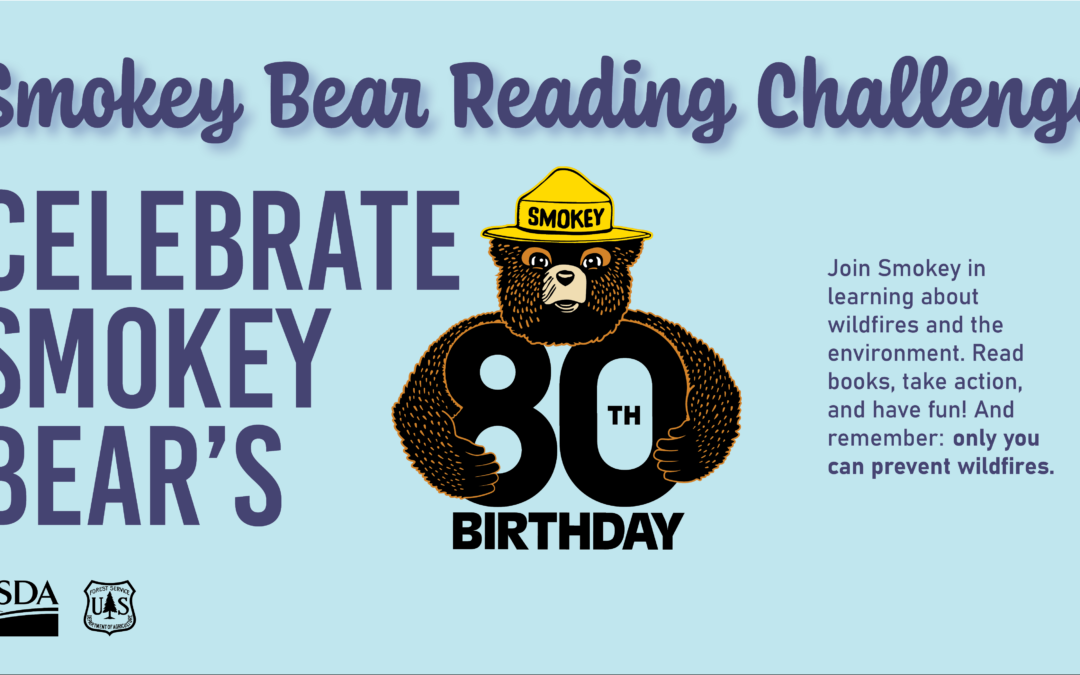
Celebrate Smokey Bear’s 80th Birthday!
Help Smokey celebrate his 80th birthday by learning how to prevent wildfires and help the environment. Read books, take action, and have fun! The reading challenge will run from May 1 to May 31,...
A Mental Health Reading List
May is Mental Health Awareness Month. Mental illness is a treatable condition that affects a reported 1 in 5 adults and children in the U.S. Educating yourself about mental health conditions and...
The latest & greatest books
Stay Informed!
The latest library happenings, delivered straight to your inbox.
Our Mission
Connecting the people of North Central Washington to vital resources and opportunities that foster individual growth and strengthen communities.
Have an amazing idea for an event? Want to start a club or teach a class?

 English
Facebook
NCW Libraries